Mateen Ahmed

  • Subscribe to our RSS feed.
  • Twitter
  • StumbleUpon
  • Reddit
  • Facebook
  • Digg

Tuesday, 16 April 2013

To Increase Networking Performance Network Stack (Buffers Size)

Posted on 15:24 by Unknown


By default the Linux network stack is not configured for high speed large file transfer across WAN links. This is done to save memory resources. You can easily tune Linux network stack by increasing network buffers size for high-speed networks that connect server systems to handle more network packets.

The default maximum Linux TCP buffer sizes are way too small. TCP memory is calculated automatically based on system memory; you can find the actual values by typing the following commands:

$ cat /proc/sys/net/ipv4/tcp_mem

The default and maximum amount for the receive socket memory:
$ cat /proc/sys/net/core/rmem_default
$ cat /proc/sys/net/core/rmem_max
The default and maximum amount for the send socket memory:
$ cat /proc/sys/net/core/wmem_default
$ cat /proc/sys/net/core/wmem_max
The maximum amount of option memory buffers:
$ cat /proc/sys/net/core/optmem_max
Tune values

Set the max OS send buffer size (wmem) and receive buffer size (rmem) to 12 MB for queues on all protocols. In other words set the amount of memory that is allocated for each TCP socket when it is opened or created while transferring files:
WARNING! The default value of rmem_max and wmem_max is about 128 KB in most Linux distributions, which may be enough for a low-latency general purpose network environment or for apps such as DNS / Web server. However, if the latency is large, the default size might be too small. Please note that the following settings going to increase memory usage on your server.

# echo 'net.core.wmem_max=12582912' >> /etc/sysctl.conf
# echo 'net.core.rmem_max=12582912' >> /etc/sysctl.conf

You also need to set minimum size, initial size, and maximum size in bytes:
# echo 'net.ipv4.tcp_rmem= 10240 87380 12582912' >> /etc/sysctl.conf
# echo 'net.ipv4.tcp_wmem= 10240 87380 12582912' >> /etc/sysctl.conf
Turn on window scaling which can be an option to enlarge the transfer window:
# echo 'net.ipv4.tcp_window_scaling = 1' >> /etc/sysctl.conf
Enable timestamps as defined in RFC1323:
# echo 'net.ipv4.tcp_timestamps = 1' >> /etc/sysctl.conf
Enable select acknowledgments:
# echo 'net.ipv4.tcp_sack = 1' >> /etc/sysctl.conf
By default, TCP saves various connection metrics in the route cache when the connection closes, so that connections established in the near future can use these to set initial conditions. Usually, this increases overall performance, but may sometimes cause performance degradation. If set, TCP will not cache metrics on closing connections.
# echo 'net.ipv4.tcp_no_metrics_save = 1' >> /etc/sysctl.conf
Set maximum number of packets, queued on the INPUT side, when the interface receives packets faster than kernel can process them.
# echo 'net.core.netdev_max_backlog = 5000' >> /etc/sysctl.conf
Now reload the changes:
# sysctl -p
Use tcpdump to view changes for eth0:
# tcpdump -ni eth0
Read More
Posted in | No comments

Linux Kernel /etc/sysctl.conf

Posted on 15:11 by Unknown


/etc/sysctl.conf can be a powerful way of changing kernel settings at run-time. If you have sysctl.conf support compiled into your kernel, you can edit parameters in the sysctl.conf to change the way your kernel behaves. This article will attempt to outline a number of sysctl configuration options. I've tried to include detailed descriptions, so you can make your own judgements on what I've recommended. Just for reference, I use Annvix (www.annvix.org) Linux and a custom 2.4.32 kernel with the OpenWall (www.openwall.org) patches installed.


net.ipv4.ip_forward = 0


As listed, this will disable IP forwarding from this machine. This disables the ability of this machine to act as a router and forward traffic to other machines. Possible states for this option are 1 and 0.


net.ipv4.conf.default.rp_filter = 1 net.ipv4.conf.all.rp_filter = 1


This option attempts to verify packet source addresses using reverse patch. This option will require that packets with a particular outgoing source addresses also receive their replies on the same interface as they were sent out. Possible states for this option are 1 and 0. Note: this option has a detrimental effect on linux machines set up as a router that use advanced or policy routing, as it has a tendancy to drop packets.


net.ipv4.conf.all.log_martians = 1 net.ipv4.conf.default.log_martians = 1


This option tells the kernel to log the source address of all packets with no route back to the source address. Martian packets are seemingly "dropped in from Mars," because we have no idea where they came from, or how to get them back. Kernel default is off (0). Possible states are 1 and 0.


net.ipv4.icmp_echo_ignore_broadcasts = 1


This option instructs the kernel to ignore ICMP messages to broadcast or multicast addresses. Helps to prevent smurf attacks among other things, and is generally unneccessary unless you need to know how many hosts on your network are alive. Kernel default is off (0). Possible states are 1 and 0.


net.ipv4.icmp_ignore_bogus_error_responses = 1


This option ignores incorrectly constructed error messages. Basically, it saves space in your logs, since some routers don't send out proper error messages, and oh, hey look, we don't care. Kernel deafult is off (0). Possible states are 1 and 0.


fs.file-max = 8192


This option specifies the max number of file handles that can be opened at one time. Default setting is 4096.


fs.inode-max = 32768


This option specifies the max number of inodes that can be opened at one time. Default setting is 4096.


net.ipv4.ip_local_port_range = 32768 61000


This option defines the range of ports that we allow clients to connect on. The default value of this variable depends on how much RAM your machine has. If you have more than 1024 MB of RAM, this variable will default to a lower bound of 32768 and a higher bound of 61000. Also, see the option I added on "tcp_tw_recycle" below.


net.ipv4.tcp_tw_recycle = 0


This option is somewhat related to the previous option. This option has two possible states, 1 and 0. This option enables fast recycling of sockets in the TCP_WAIT state. This option will increase performance significantly, but can also have an adverse effect on stability It is generally (sometimes) fine to enable this on a local network, but is not advisable when possible network delays ( like those found on the internet) could exist. Possible states are 1 and 0.


net.ipv4.tcp_syncookies = 1


When the server SYN queue is overflowed, this option enables the kernel to send out SYN cookies to verify that the SYN packets it is recieving are legitimate. Note that this option may help performance, but is also a violation of the TCP protocol. Should not be used as a tuning mechanism for heavily loaded servers, instead see tcp_max_syn_backlog, tcp_synack_retries, and tcp_abort_on_overflow. I've included information for them below. Also note that the use of this option disables TCP window scaling. Note that the kernel must be compiled with CONFIG_SYN_COOKIES. Default value is 0. Possible states are 1 and 0.


net.ipv4.tcp_max_syn_backlog = 2048


This option defines the maximum socket queue size for TCP SYN requests. This can be used as an alternative to SYN cookies. Kernel defaults are 128 if you have less than less than 128 MB of RAM, and 1024 if you have more than 128 MB of RAM.


net.ipv4.tcp_synack_retries = 5


This option defines the maximum number of attempts that the kernel will make to establish a connected state on a TIME_WAIT connection. This option is useful for tuning against DoS attacks such as SYN flooding as an alternative to SYN cookies. Kernel default is 5, and each connection takes about 35 seconds, so the default timeout for half-open passive TCP connections is 180 seconds. Takes an integer value, but should be left at 5 or lower, unless there is a really good reason. Default is 5.


net.ipv4.tcp_syn_retries = 5


This option defines the maximum number of attempts that the kernel will make to establish a connected state on an _active_ TCP connection. Note that this is different than tcp_synack_retries in that this relates to connections that the kernel is making actively. Kernel default is 5, and each connection takes about 35 seconds, so the default timeout for active TCP connections is 180 seconds. Takes an integer value, but should be left at 5 or lower, unless there is a really good reason. Default is 5.


net.ipv4.tcp_abort_on_overflow = 0


This option instructs the kernel to send RST responses to incoming connections when the daemon is flooded with connect requests that the daemon cannot handle. If this is set to 0, the system will attempt to handle all requests. As recommended in the sysctl documentation, it is good to leave this as 0, unless absolutely neccessary, as it may affect your clients. It's a last-ditch option.


net.ipv4.tcp_fin_timeout = 10


This option tells the kernel how long to keep connections in the FIN-WAIT-2 state. If the remote end does not properly close its connection, then this option instructs the kernel to drop the connection in 10 seconds. Default is 60.


net.ipv4.tcp_keepalive_time = 1800


This option tells the kernel how long to wait before sending keepalive packets to TCP connections in a keepalive state. This setting is related to tcp_keepalive_probes, and tcp_keepalive_intvl, which are described below. Setting this to 1800 will make the kernel wait 30 minutes before sending any keepalive probes to determine if the connection is still valid. For a connection in keepalive state to be dropped, the kernel waits until tcp_keepalive_time (in our case, 60 seconds). Then, it sends up to tcp_keepalive_probes (default 9) to determine if the host is alive. The probes are sent at the rate defined in tcp_keepalive_intvl (default 75, or 75 every second). Default is 7200.


net.ipv4.tcp_keepalive_probes = 9


This option defines how many probes will be sent to a host after the keepalive timeout is reached. Default is 9.


net.ipv4.tcp_keepalive_intvl = 75


This option defines the interval (in seconds) between sending TCP keepalive probes. Default is 75.


echo "0" > /proc/sys/net/ipv4/tcp_window_scaling


Just a quick rundown of TCP windows. There is a lot here, so I didn't feel like commenting it. Default is on.

A "TCP window" is the maximum amount of outstanding data that a user can send on a particular connection, before it requires a response from the reciever acknowledging that the reviever has indeed received at least some of the data. The kernel will only send data up to the TCP window size limit before waiting for a response from the far end. The default TCP window is 32KB. This value is defined in /usr/src/linux/include/net/tcp.h, in the setting #define MAX_TCP_WINDOW 32767U. TCP buffers help to maximize efficiency of a connection. Having low TCP window sizes on a latent connection (like the internet) will decrease efficiency. TCP window scaling (tcp_window_scaling) enables TCP to use windows greater than 64KB. This works in conjunction with TCP's autotuning features. TCP has an autotuning feature which will attempt to determine the best window sizes for connections, automatically. Disabling the tcp_window_scaling feature disables TCP windows and autotuning. For more information see http://www.psc.edu/networking/projects/tcptune/, and the ip-sysctl documentation.


net.ipv4.tcp_timestamps = 0


This option instructs the kernel to disable TCP timestamps. Timestamps are used to calculate Round-Trip Time. With this option enabled (1), data packets are sent with timestamps, and returning ACK packets also carry timestamps. RTT can then be calculated by comparing the values. Timestamps are used by the PAWS (Protection Against Wrapped Sequences) algorithm to ensure that TCP sequence numbers are not wrapped before packets are delivered. Problems arise when packets are latent, and the TCP sequence numbers wrap before the latent packets are delivered. A DoS condition can exist in certain situations with this option enabled, as PAWS sometimes can be tricked into dropping valid packets. Also, leaving this enabled means it's just "one more thing" for the kernel to do. Default is 1. Possible values are 1 and 0.


net.ipv4.conf.all.accept_source_route


This option will disable source routing for this machine. If this machine isn't a router, you probably don't need source routing. Default is 1. Possible values are 1 and 0.


net.ipv4.conf.all.send_redirects = 0


This option instructs the kernel to NOT send ICMP redirect messages. Other related ICMP options are listed below. Possible values are 1 and 0.


net.ipv4.ipfrag_time = 20


This option tells the handler how long to keep an IP fragment in memory, 20 seconds in this case. Only fragments that can not yet be assembled are kept here, since fragments that can be assembled have already been moved.


net.ipv4.conf.all.accept_redirects = 0


Refuse to accept IP redirects We don't want someone telling us that there is a 'faster' or 'better' path, and potentially hijacking our connection. default is on (1).


net.ipv4.tcp_ecn = 0


don't use Explicit Congestion Notification in our packets. Some routers don't like it.


net.ipv4.tcp_rfc1337 = 1


This option requires compliance with RFC1337. Enabling this option will ignore RST packets that are sent to a connection in a TIME_WAIT state. Instead, the connection will wait for the connection to timeout like normal. I dunno what you guys comments on this is, I usually leave it on.


net.ipv4.conf.all.proxy_arp = 0


We don't really want to proxy ARP for anyone, do we? This option is turned off by default, but just to be safe...


net.ipv4.route.flush = 1


Disable autocaching of window sizes in the routing table.


sysctl command


The sysctl command is used to modify kernel parameters at runtime. /etc/sysctl.conf is a text file containing sysctl values to be read in and set by sysct at boot time. To view current values, enter:

# sysctl -a

# sysctl -A

# sysctl mib

# sysctl net.ipv4.conf.all.rp_filter

To load settings, enter:

# sysctl -p
Sample /etc/sysctl.conf


Edit /etc/sysctl.conf and update it as follows. The file is documented with comments. However, I recommend reading the official Linux kernel sysctl tuning help file (see below):# The following is suitable for dedicated web server, mail, ftp server etc. # --------------------------------------- # BOOLEAN Values: # a) 0 (zero) - disabled / no / false # b) Non zero - enabled / yes / true # -------------------------------------- # Controls IP packet forwarding net.ipv4.ip_forward = 0 # Controls source route verification net.ipv4.conf.default.rp_filter = 1 # Do not accept source routing net.ipv4.conf.default.accept_source_route = 0 # Controls the System Request debugging functionality of the kernel kernel.sysrq = 0 # Controls whether core dumps will append the PID to the core filename # Useful for debugging multi-threaded applications kernel.core_uses_pid = 1 # Controls the use of TCP syncookies #net.ipv4.tcp_syncookies = 1 net.ipv4.tcp_synack_retries = 2 ########## IPv4 networking start ############## # Send redirects, if router, but this is just server net.ipv4.conf.all.send_redirects = 0 net.ipv4.conf.default.send_redirects = 0 # Accept packets with SRR option? No net.ipv4.conf.all.accept_source_route = 0 # Accept Redirects? No, this is not router net.ipv4.conf.all.accept_redirects = 0 net.ipv4.conf.all.secure_redirects = 0 # Log packets with impossible addresses to kernel log? yes net.ipv4.conf.all.log_martians = 1 net.ipv4.conf.default.accept_source_route = 0 net.ipv4.conf.default.accept_redirects = 0 net.ipv4.conf.default.secure_redirects = 0 # Ignore all ICMP ECHO and TIMESTAMP requests sent to it via broadcast/multicast net.ipv4.icmp_echo_ignore_broadcasts = 1 # Prevent against the common 'syn flood attack' net.ipv4.tcp_syncookies = 1 # Enable source validation by reversed path, as specified in RFC1812 net.ipv4.conf.all.rp_filter = 1 net.ipv4.conf.default.rp_filter = 1 ########## IPv6 networking start ############## # Number of Router Solicitations to send until assuming no routers are present. # This is host and not router net.ipv6.conf.default.router_solicitations = 0 # Accept Router Preference in RA? net.ipv6.conf.default.accept_ra_rtr_pref = 0 # Learn Prefix Information in Router Advertisement net.ipv6.conf.default.accept_ra_pinfo = 0 # Setting controls whether the system will accept Hop Limit settings from a router advertisement net.ipv6.conf.default.accept_ra_defrtr = 0 #router advertisements can cause the system to assign a global unicast address to an interface net.ipv6.conf.default.autoconf = 0 #how many neighbor solicitations to send out per address? net.ipv6.conf.default.dad_transmits = 0 # How many global unicast IPv6 addresses can be assigned to each interface? net.ipv6.conf.default.max_addresses = 1 ########## IPv6 networking ends ############## #Enable ExecShield protection kernel.exec-shield = 1 kernel.randomize_va_space = 1 # TCP and memory optimization # increase TCP max buffer size setable using setsockopt() #net.ipv4.tcp_rmem = 4096 87380 8388608 #net.ipv4.tcp_wmem = 4096 87380 8388608 # increase Linux auto tuning TCP buffer limits #net.core.rmem_max = 8388608 #net.core.wmem_max = 8388608 #net.core.netdev_max_backlog = 5000 #net.ipv4.tcp_window_scaling = 1 # increase system file descriptor limit fs.file-max = 65535 #Allow for more PIDs kernel.pid_max = 65536 #Increase system IP port limits net.ipv4.ip_local_port_range = 2000 65000

Read More
Posted in | No comments

User Accounts and Strong Password Policy

Posted on 14:47 by Unknown
    Use the useradd / usermod commands to create and maintain user accounts. Make sure you have a good and strong password policy. For example, a good password includes at least 8 characters long and mixture of alphabets, number, special character, upper & lower alphabets etc. Most important pick a password you can remember.
1: Password Aging
The chage command changes the number of days between password changes and the date of the last password change. This information is used by the system to determine when a user must change his/her password. The /etc/login.defs file defines the site-specific configuration for the shadow password suite including password aging configuration. To disable password aging,
#chage -M 99999 userName
To get password expiration information
#chage -l username
you can also edit the /etc/shadow file in the following fields:
{userName}:{password}:{lastpasswdchanged}:{Minimum_days}:{Maximum_days}:{Warn}:{Inactive}:{Expire}:
Ø  Minimum_days: The minimum number of days required between password changes i.e. the number of days left before the user is allowed to change his/her password.
Ø  Maximum_days: The maximum number of days the password is valid (after that user is forced to change his/her password).
Ø  Warn : The number of days before password is to expire that user is warned that his/her password must be changed.
Ø  Expire : Days since Jan 1, 1970 that account is disabled i.e. an absolute date specifying when the login may no longer be used.
I recommend chage command instead of editing the /etc/shadow by hand:
#chage -M 60 -m 7 -W 7 userName
2: Restricting Use of Previous Passwords
You can prevent all users from using or reuse same old passwords under Linux. The pam_unix module parameters remember can be used to configure the number of previous passwords that cannot be reused.
Ø  PAM is a flexible mechanism for authenticating users. For example, you do not allow users to reuse recent passwords. This can be accomplished by using the remember option for the pam unix PAM module.
Ø  This module provides functionality for PAM modules such as authentication, account management etc. Same module can be used to maintain a list of old passwords for every user. This is useful if you want to disallow use of old passwords. The old password list is located in the /etc/security/opasswd file.
Limit Password Reuse
Open your /etc/pam.d/common-password file under Debian / Ubuntu Linux, run:
# vi /etc/pam.d/common-password
If you are using CentOS / RHEL / RedHat / Fedora Linux, edit /etc/pam.d/system-auth file, run:
# vi /etc/pam.d/system-auth
Now, update existing password line and append remember=10 to prevent a user from re-using any of his or her last 10 passwords. Do not append new line, update exiting password line and append remember=10.
password sufficient pam_unix.so use_authtok md5 shadow remember=10
Save and close the file.
Now Linux will remember last 10 passwords. If user tries to use any one of the last 10 old passwords, he/she will get an error:
Password has been already used. Choose another.
3: Locking User Accounts After Login Failures
Under Linux you can use the faillog command to display faillog records or to set login failure limits. faillog formats the contents of the failure log from /var/log/faillog database / log file. It also can be used for maintains failure counters and limits.To see failed login attempts, enter:
#faillog
To unlock an account after login failures, run:
#faillog -r -u userName
Note you can use passwd command to lock and unlock accounts:
# lock account
passwd -l username
# unlocak account
passwd -u username
4: How Do I Verify No Accounts Have Empty Passwords?
Type the following command
# awk -F: '($2 == "") {print}' /etc/shadow
Lock all empty password accounts:
# passwd -l accountName
5: Make Sure No Non-Root Accounts Have UID Set To 0
Only root account have UID 0 with full permissions to access the system. Type the following command to display all accounts with UID set to 0:
# awk -F: '($3 == "0") {print}' /etc/passwd
You should only see one line as follows:
root:x:0:0:root:/root:/bin/bash

Read More
Posted in | No comments

Sunday, 14 April 2013

Nice Process Handling In Linux

Posted on 11:10 by Unknown


Kill All Processes Of A Specific User

You can simply kill a process by issuing kill -9 pid_of_the_process command but what to do if you want to kill all the processes of a specific user. To do so you will have to use advanced form of kill known as killall as killall -u usrname. Now try to kill all the processes running under root by issuing killall -u root and see what happens.

Setting Disk IO Priority For A Process

For this you can use ionice command as- ionice -c3 -p pid_of_the_process.

You can use following values with c-

1-Realtime: Gives the process top most priority on Disk I/O operations regardless of other running processes.

2-Best Effort: That’s the by-default setting.

3-Idle:Here process get disk time only when there is no other disk operation need to be performed.

You can view the Disk I/O priority of a process by issuing ionice -p pid_of_the_process command.
Read More
Posted in | No comments

Hacking Password Protected Single User Mode

Posted on 11:07 by Unknown


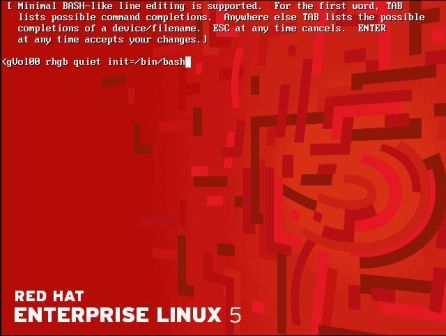
In one of my earlier posts, we discuss about password protecting single user mode which can enhance the security of your system. But there is also a different aspect of this security patching that if you forget the root password, you can’t even login to single user mode to change the password or to perform any other maintenance related task. So today we’ll deal with this critical situation where you can change your password even if your single user mode is password protected.

The process is quite simple. At the time of booting press any key to edit the grub menu. Select the operating system and press e. Now go to the kernel line and press e again. It’s time to change some kernel parameters. So write init=/bin/bash and press enter to come out of this. Now press b to boot.So what we have actually done is to tell kernel that instead of starting normal inittab file just give me a simple bash shell.Now you’ll get a bash shell.

The process from this point of time is as following where we need to issue some commands-
First of mount the / partition in read-write mode. So issue mount -o remount, rw /command.
Now change the password using passwd command.
Again remount the / partition in read only mode by using mount -o remount, ro / command.

Now just restart the machine and you’ve successfully changed your root account password. I think that you’ll love this small hack. Enjoy!!!
Read More
Posted in | No comments

Minimal Services Set-Up For a CentOS

Posted on 10:55 by Unknown

This is a list for a minimal install of CentOS 5 (but applies equally to RHEL or other RHEL derivatives).
Disabling unneeded services makes your system more secure as well as reducing server load.
After performing a minimal install run the following command to see which services are already running
chkconfig --list |grep "3:on" |awk '{print $1}'
and to check the amount of memory used by each of those services
ps aux | awk '{print $4"\t"$11}' | sort | uniq -c | awk '{print $2" "$1" "$3}' | sort -nr

Disable as many of the services we don't (generall) need
chkconfig anacron off
chkconfig apmd off
chkconfig atd off
chkconfig autofs off
chkconfig cpuspeed off
chkconfig cups off
chkconfig cups-config-daemon off
chkconfig gpm off
chkconfig isdn off
chkconfig netfs off
chkconfig nfslock off
chkconfig openibd off
chkconfig pcmcia off
chkconfig portmap off
chkconfig rawdevices off
chkconfig readahead_early off
chkconfig rpcgssd off
chkconfig rpcidmapd off
chkconfig smartd off
chkconfig xfs off
chkconfig ip6tables off
chkconfig avahi-daemon off
chkconfig firstboot off
chkconfig yum-updatesd off
chkconfig mcstrans off
chkconfig pcscd off
chkconfig bluetooth off
chkconfig hidd off
You might also disable the follow services depending on your needs:
  • acpid
    Needed for gentle shut-down using the power button
  • mdmonitor
    Needed only if you are using SoftwareRAID
  • haldaemon and messagebus
    Needed for plug&play devices
  • sendmail
    Needed if you expect to receive mail through logwatch or another service
  • microcode_ctl
    Not needed if you are using an AMD CPU
  • setroubleshoot & restorecond
    Not needed unless running SELinux
You can find a rather comprehensive list of RHEL daemons here
After we have shutdown all the appropriate services we reboot the machine.
After the reboot we can check the amount of memory usage using :
free -m
Read More
Posted in | No comments

Samba as a PDC with tdbsam as a backend on CentOS

Posted on 10:29 by Unknown

Here I discuss how to set up Samba as a Primary Domain Controller with tdbsam as a backend to store username and password.
Steps:
1. Install the following packages
samba-common-3.0.33-3.14.el5
samba-3.0.33-3.14.el5
samba-client-3.0.33-3.14.el5
2. Configure /etc/samba/smb.conf file as follows:
[global]
workgroup = "YOURDOMAIN NAME"
server string = Samba PDC
passdb backend = tdbsam
log level = 3
log file = /var/log/samba/%m.log
max log size = 50
add user script = /usr/sbin/useradd "%u" -n -g users
delete user script = /usr/sbin/userdel "%u"
add group script = /usr/sbin/groupadd "%g"
delete group script = /usr/sbin/groupdel "%g"
delete user from group script = /usr/sbin/userdel "%u" "%g"
add machine script = /usr/sbin/useradd -n -c "Workstation (%u)"-M /nohome -s /bin/false "%u"
domain logons = Yes
os level = 35
preferred master = Yes
domain master = Yes
wins support = Yes
cups options = raw
3. Now we need to create some group so that we can map those group with already existing group in windows.
#groupadd ntadmin
#groupadd ntusers
#groupadd ntguests
4. Map these newly created groups using following commands.
net groupmap add ntgroup="Domain Admins" unixgroup=ntadmins rid=512 type=d
net groupmap add ntgroup="Domain Users" unixgroup=ntusers rid=513 type=d
net groupmap add ntgroup="Domain Guests" unixgroup=ntguests rid=514 type=d
5. Check it maps properly.
#net groupmap list
6. Add the root user which is already map to administrator
#smbpasswd -a root
7. Now create local users and add them to the above groups which are mapped to Domain
Users, Domain Admins and Guests.
#useradd -G ntusers testuser
#passwd testuser
8. Final step is to add testuser to tdbsam backend.
#smbpasswd -a testuser
Join the Windows system to the domain MYDOMAIN. When joining to the domain for the
first time, Join the system with user root and password as set earlier. Once the system is
joined, login as user testuser with password set earlier.
Read More
Posted in | No comments

Your Console

Posted on 10:23 by Unknown

Disable Shutdown via Ctrl+Alt+Del
Comment following line from /etc/inittab file
ca::ctrlaltdel:/sbin/shutdown -t3 -r now
==========================================================================
Allow non-privilege user to shutdown
to do so add -a option in a line from /etc/inittab file
ca::ctrlaltdel:/sbin/shutdown -a -t3 -r now
-a option looks for /etc/shutdown.allow file
create /etc/shutdown.allow in /etc. Add non-privilege user to whom you want to give an
authority to shutdown.
==========================================================================
Disable Console Program Access
#rm -f /etc/security/console/apps/*
to disable powerroff, halt or reboot
#rm -f /etc/security/console.apps/{poweroff, halt, reboot}
==========================================================================
DEFINING CONSOLE
The pam_console.so module uses the /etc/security/console.perms file to determine the
permissions for users at the system console. The syntax of the file is very flexible; you can edit the file
so that these instructions no longer apply. However, the default file has a line that looks like this:
=tty[0-9][0-9]* vc/[0-9][0-9]* :[0-9]\.[0-9] :[0-9]
When users log in, they are attached to some sort of named terminal, which can be either an X server
with a name like :0 or mymachine.example.com:1.0, or a device like /dev/ttyS0 or /dev/
pts/2. The default is to define that local virtual consoles and local X servers are considered local, but
if you want to consider the serial terminal next to you on port /dev/ttyS1 to also be local, you can
change that line to read:
=tty[0-9][0-9]* vc/[0-9][0-9]* :[0-9]\.[0-9] :[0-9] /dev/ttyS1
Read More
Posted in | No comments

Kdump Configuration

Posted on 10:21 by Unknown

Kdump Configuration

Configure kdump to analyse Linux kernel crash and kernel panics.
Linux kernel crash and panics and the reason behind it is analyzed with the help of kdump utility.
Kdump is a crash dumping mechanism and it uses the context of another kernel at boot time to capture the crash and core dump. The context of the kernel reserves a small amount of memory, and its only purpose is to capture the core dump of the crashed kernel.
Following are the steps to configure kdump from command prompt.
Login as a user root and edit /boot/grub/grub.conf file, and add the crashkernel=M parameter to the list of kernel options. After editing grub.conf file looks like as follows:
# grub.conf generated by anaconda
#
# Note that you do not have to rerun grub after making changes to this file
# NOTICE: You have a /boot partition. This means that
# all kernel and initrd paths are relative to /boot/, eg.
# root (hd0,0)
# kernel /vmlinuz-version ro root=/dev/sda3
# initrd /initrd-version.img
#boot=/dev/sda
default=0
timeout=5
splashimage=(hd0,0)/grub/splash.xpm.gz
hiddenmenu
title Red Hat Enterprise Linux Server (2.6.18-194.8.1.el5)
root (hd0,0)
kernel /vmlinuz-2.6.18-194.8.1.el5 ro root=/dev/sda3 crashkernel=128M
initrd /initrd-2.6.18-194.8.1.el5.img
Now configure the target location in /etc/kdump.conf file. The default file location to store dump file i.e. vmcore files in the /var/crash/ directory of the local system.
It is also possible to save the file on remote location using NFS and SCP, but these techniques are not written here.
Edit /etc/kdump.conf file:
To change the local directory in which the core dump is to be saved, remove the hash sign (“#”) from the beginning of the #path /var/crash line, and replace the value with a desired directory path.
ext3 /dev/sda4
path /usr/local/cores
To write the dump directly to a device, remove the hash sign (“#”) from the beginning of the #raw /dev/sdc5 line, and replace the value with a desired device name. For example:
raw /dev/sdb1
Also possible to configure dump core using core collector. To reduce the size of the vmcore we can use makedumpfile utility.
To enable core collector search for core_collector directive in /etc/kdump.conf file and uncomment it if it is not.
core_collector makedumpfile –c
To remove the unwanted pages from the dump file we can pass –d option to core_collector.
core_collector makedumpfile -d –c
where Numeric value is a sum of values of pages we want to omit.
Option Page type to omit
1 Zero Pages
2 Cache Pages
4 Cache Private
8 User Pages
16 Blank Pages
Now all we need is to start the kdump service on boot time.
#chkconfig kdump on
Start the kdump service.
# service kdump start
No kdump initial ramdisk found. [WARNING]
Rebuilding /boot/initrd-2.6.18-194.8.1.el5kdump.img
Starting kdump: [ OK ]
Test the kdump configuration.
To test the configuration, reboot the system with kdump enabled, and make sure that the service is running:
# service kdump status
Kdump is operational
Then type the following commands at a shell prompt:
# echo 1 > /proc/sys/kernel/sysrq
# echo c > /proc/sysrq-trigger
The above command makes Linux kernel to crash, and the YYYY-MM-DD-HH:MM/vmcore file will be copied to the location we have selected in the configuration.
Analyze the core dump:
To analyze the crash kernel we need to packages and they are crash and kernel-debuginfo.
Now all we need to start the crash utility.
crash /var/crash/timestamp/vmcore /usr/lib/debug/lib/modules/kernel/vmlinux.
At the crash prompt we can run several commands like
Crash> log ## Display the mesg buffer
Crash>bt ## backtrace
Crash>[ps | vm | files] ## Refer man page for more options.
Read More
Posted in | No comments

Auto Login to GUI and to TTY terminal in RHEL/CENTOS

Posted on 10:15 by Unknown

For GUI:
Edit /etc/gdm/custom.conf
[daemon]
AutomaticLoginEnable=true
AutomaticLogin=username
For CLI:
Edit /etc/init/tty.conf
Look for the line: exec /sbin/mingetty $TTY
Edit the line as: exec /sbin/mingetty --autologin username $TTY
Read More
Posted in | No comments

Reinstall a corrupted boot partition.

Posted on 10:00 by Unknown

Reinstall a corrupted boot partition.

 Issue
In a system where the "/boot" partition is a separate partition, when /boot is corrupted or be
formatted mistakenly, you can not boot the system but do not want to reinstall the whole
system.
Environment
• Red Hat Enterprise Linux, CentOS, Fedora/
• /boot partition is installed on the first partition of your first disk
• x86 architecture
Resolution
Reinstall /boot partition manually with the following steps:
1. Boot the system into rescue mode with the help of CD or DVD:
   At boot prompt, type "linux rescue".
This will start the rescue mode program.
You will be prompted for your keyboard and language requirements.
Enter these values as
you would during the installation of Red Hat Enterprise Linux.
Next, a screen will appear telling you that the program will now attempt to find a Red Hat
Enterprise Linux installation to rescue. Select "Continue" on this screen.
2. At the "sh-3.1" prompt, chroot to /mnt/sysimage:
# chroot /mnt/sysimage
3. Make sure the boot partition is labeled as described in /etc/fstab. (Assuming the boot partition is /dev/sda1):
# e2label /dev/sda1 /boot
4. Make sure the boot partition is mounted:
# mount /dev/sda1 /boot
5. Mount the CD to install the following rpms:
# mkdir /mnt/iso
# mount -o loop,ro /dev/hdc /mnt/iso
# cd /mnt/iso/Server
# rpm -Uvh --replacefiles --replacepkgs grub-0.97-13.i386.rpm
# rpm -Uvh --replacefiles --replacepkgs redhat-logos-4.9.16-1.noarch.rpm
# rpm -ivh --replacefiles --replacepkgs kernel-2.6.18-8.el5.i686.rpm
6. Install the GRUB:
# grub-install /dev/sda
7. If /boot/grub/grub.conf is lost, you need to create it manually. The following is a sample of
grub.conf, please make sure the the file "vmlinuz-2.6.18-8.el5" and "initrd-2.6.18-8.el5.img"
exist under the directory of /boot (which should be installed after step 4).
8. default=0
timeout=5
splashimage=(hd0,0)/grub/splash.xpm.gz
hiddenmenu
title Red Hat Enterprise Linux (2.6.18-8.el5)
root (hd0,0)
kernel /vmlinuz-2.6.18-8.el5 ro root=LABEL=/
initrd /initrd-2.6.18-8.el5.img
9. Make a soft link to grub.conf:
# cd /boot/grub
# ln -s grub.conf menu.lst
Then reboot the system.
Read More
Posted in | No comments
Newer Posts Older Posts Home
Subscribe to: Posts (Atom)

Popular Posts

  • Linux Kernel /etc/sysctl.conf
    /etc/sysctl.conf can be a powerful way of changing kernel settings at run-time. If you have sysctl.conf support compiled into your kernel, y...
  • Domain name formulation
    The right-most label conveys the top-level domain; for example, the domain name  www.example.com  belongs to the top-level domain com. The h...
  • How To Add a non-login User in Linux so that he/she doesn't have shell.
    useradd & usermod commands are used to add and modify the users in linux. When invoked without the -D option, the useradd command creat...
  • To Increase Networking Performance Network Stack (Buffers Size)
    By default the Linux network stack is not configured for high speed large file transfer across WAN links. This is done to save memory resour...
  • SVN Server on RHEL6
    Subversion (SVN) is a version control system initiated in 2000 by CollabNet Inc. It is used to maintain current and historical versions of f...
  • Types of NameServer
                                                            There are four primary nameserver configuration:    Master Server:  The primary mast...
  • Apache Security with SELinux
    Security with Apache is an important topic, of which SELinux is a part. The reason for discussing SELInux at this point is so that you have ...
  • How do I hide the Apache version number under Linux server?
    You can easily hide Apche (httpd) version number and other information. There are two config directives that controls Apache version. The S...
  • Configuring ssh Server
                                                          SSH SERVER CONFIGURATIONS ssh command is a client remote login program to connect remo...
  • TOP - Process Activity Command
    The top program provides a dynamic real-time view of a running system i.e. actual process activity. By default, it displays the most CPU-int...

Blog Archive

  • ▼  2013 (19)
    • ►  July (1)
    • ►  June (6)
    • ►  May (1)
    • ▼  April (11)
      • To Increase Networking Performance Network Stack (...
      • Linux Kernel /etc/sysctl.conf
      • User Accounts and Strong Password Policy
      • Nice Process Handling In Linux
      • Hacking Password Protected Single User Mode
      • Minimal Services Set-Up For a CentOS
      • Samba as a PDC with tdbsam as a backend on CentOS
      • Your Console
      • Kdump Configuration
      • Auto Login to GUI and to TTY terminal in RHEL/CENTOS
      • Reinstall a corrupted boot partition.
  • ►  2012 (12)
    • ►  December (11)
    • ►  November (1)
Powered by Blogger.

About Me

Unknown
View my complete profile